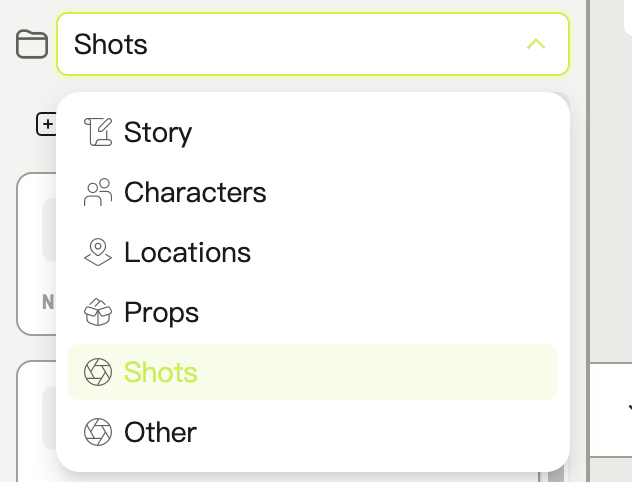
Move to and Copy to open a tree picker where you select the destination dataset. Both work on a multi-selection, and report how many items were moved or copied.
Moving an asset that is the source dataset’s cover promotes another image to cover automatically.
Reviewing and reordering a set, editing its fields inline
Bundle preview
A canvas bundle node
Enabling, disabling, renaming, and reordering members
Panorama viewer
A panorama node
360° viewing
Gallery view
Idea detail
Full-screen browsing with keyboard navigation
The lightbox is for images only. Video deliberately does not use it, because clicking would trigger a download instead of playing.
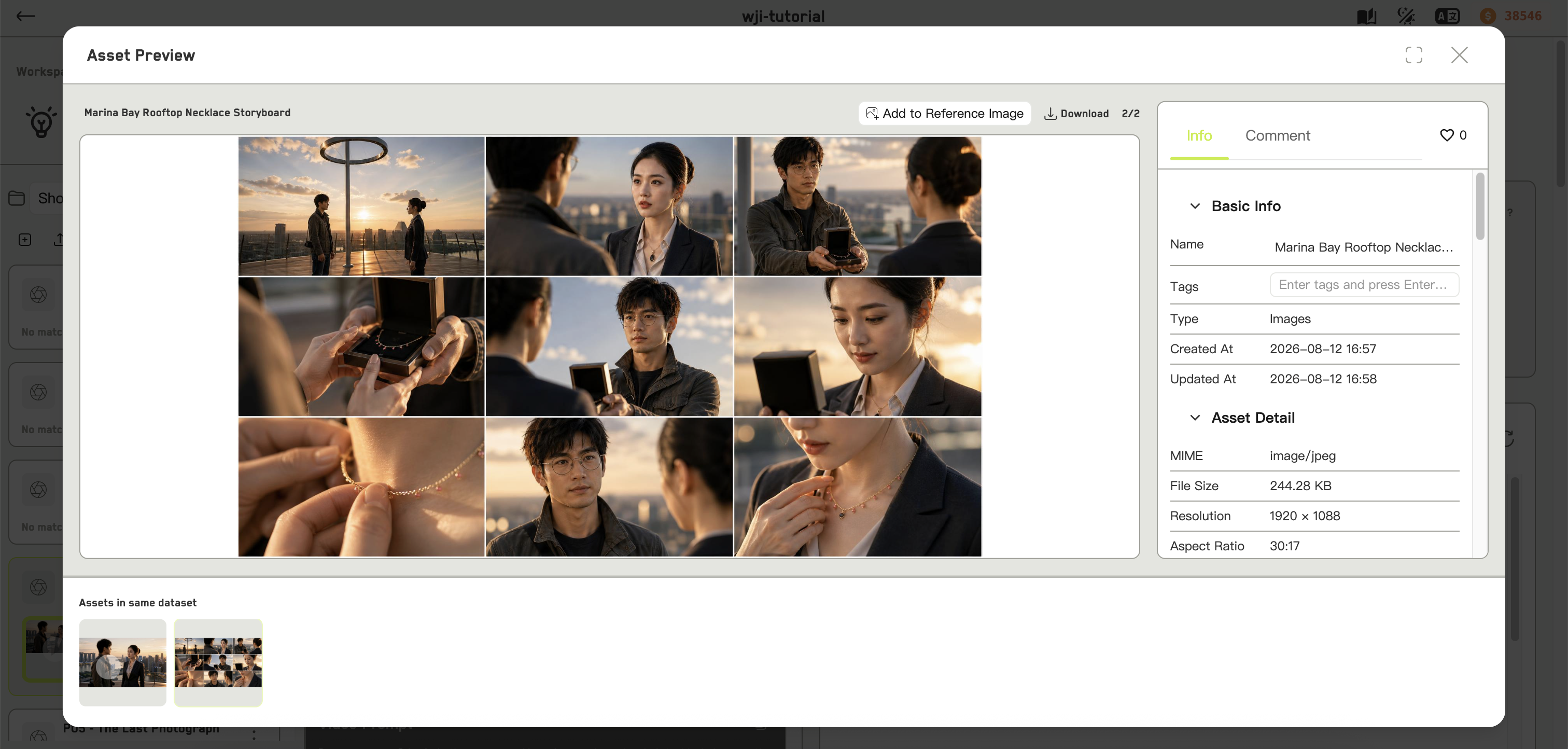
The asset preview dialog is the one worth knowing well. It carries basic info, file details, full generation details, both prompts with copy buttons, the references used, tags, comments, likes, inline renaming, and Use for generation again.
Rename inline at the top of the asset preview dialog, or in its info panel. Tags are added in the same panel — type and press Enter.Delete from the asset menu, the sidebar thumbnail popover, or the idea detail view. Deleting a single asset asks for confirmation; deleting a multi-selection tells you how many will go.
Describe image, Describe video, or Describe audio runs AI over the asset and returns a written description you can copy. On the canvas, the same feature creates a text node from the result.