

The asset library
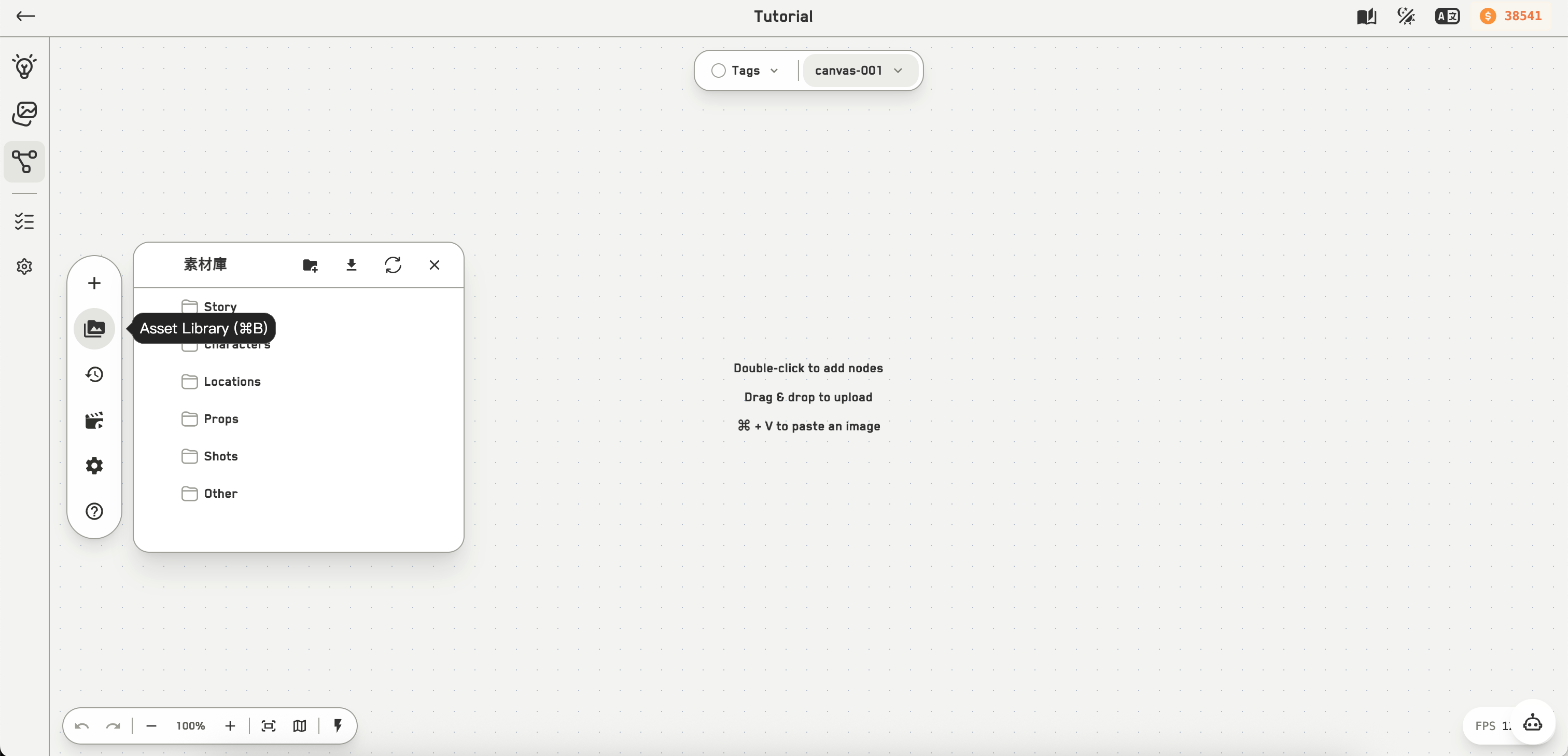
The asset library panel
⌘B or the second icon in the capsule toolbar. It shows your workspace’s folder tree and its datasets.
Each dataset’s ⋮ menu offers:
- Edit
- Switch between asset view and content view
- Create image and Create video — starts a generation using that dataset’s image or video prompt
- Download
- Delete
The hint in the panel says it: Alt-drag to the canvas creates a node; drag onto another dataset node to move the asset instead.
Generation history
The third capsule icon opens the canvas-wide history panel. It scrolls indefinitely and shows each result’s thumbnail, prompt, type, and time. Results without a prompt are labelled as such. Clicking one opens the large preview. This is history for the whole canvas, regardless of which node produced it.Node history

The node history picker
Preview dialogs
Depending on what you open, you get a different preview:
See Managing assets for what each one can do.