

Two modes
- Storyboard
- Multi-angle
Each cell is a different shot — a sequence. Use it to block out how a scene cuts together.
Layout
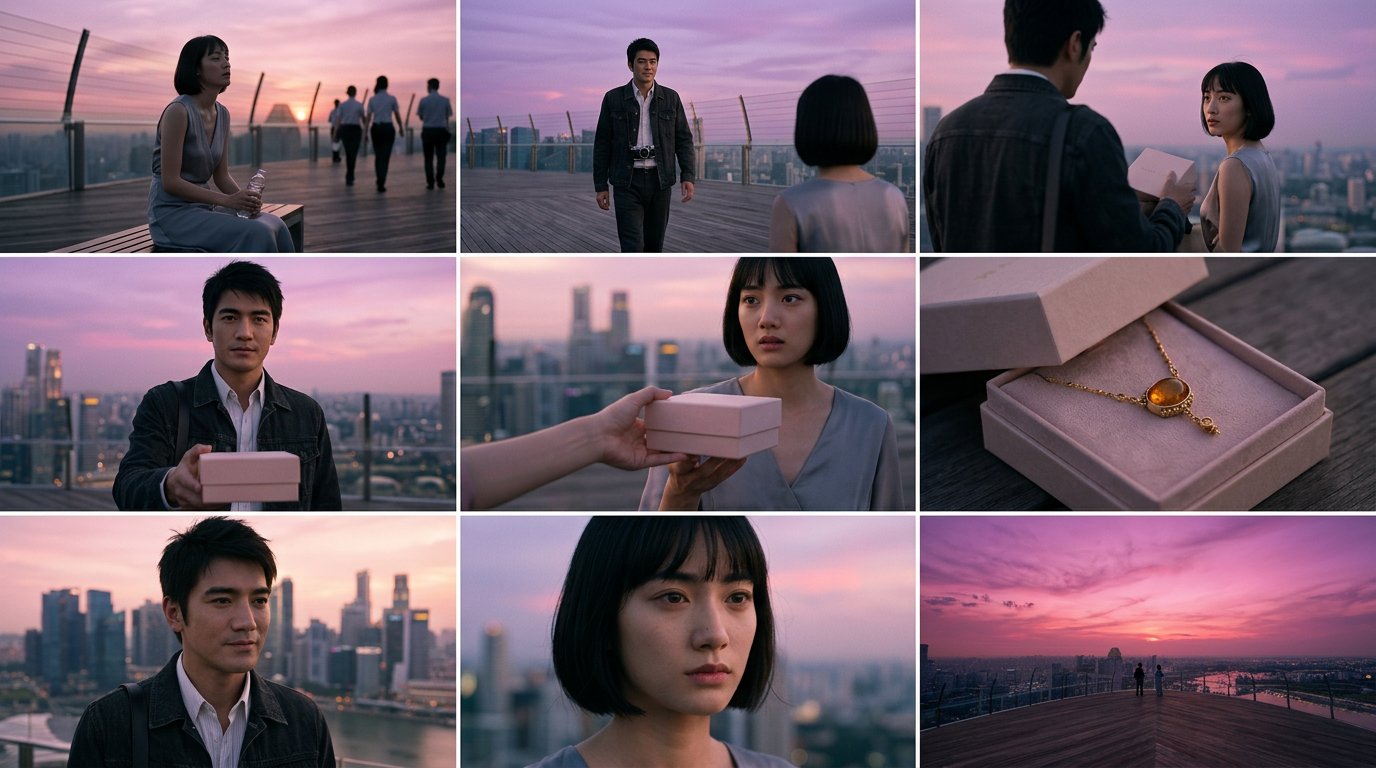
A 3x3 storyboard result
Choosing a layout forces batch size to 1 — the grid is the output.
Add shot descriptions is a toggle. With it on, each cell carries a caption describing the shot.
Upscaling a cell
The grid is one image, so an individual cell is only a fraction of its resolution. When you find a frame worth keeping, upscale it.1
Pick the cell
From the storyboard result card.
2
Choose a resolution
2K or 4K, with an optional detail-enhancement toggle.
3
Start the upscale
WJI crops that cell, uploads it, and regenerates it at the higher resolution.
Cell upscaling requires a specific model to be available on your account. If it is missing, WJI tells you rather than silently substituting a different one.