

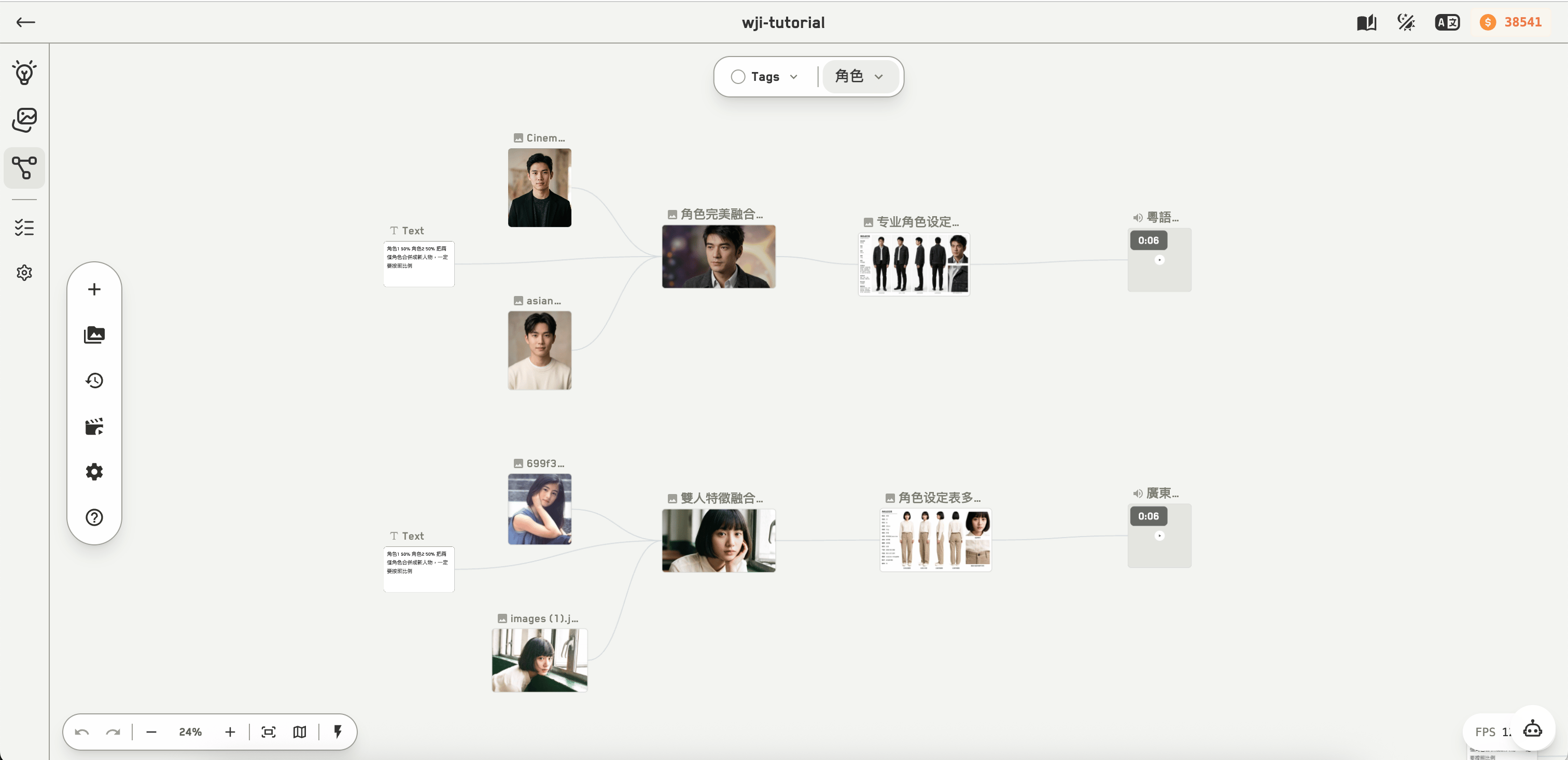
A canvas with connected nodes
The one idea that matters
A connection is not decoration. It is how context reaches the AI. Wire an image node into a generation node and that image becomes a reference. Wire a text node in and its content is prepended to the prompt. Wire in a dataset and its members are expanded. Once that clicks, the rest of the canvas follows. Read Connections and references before anything else.What is on screen
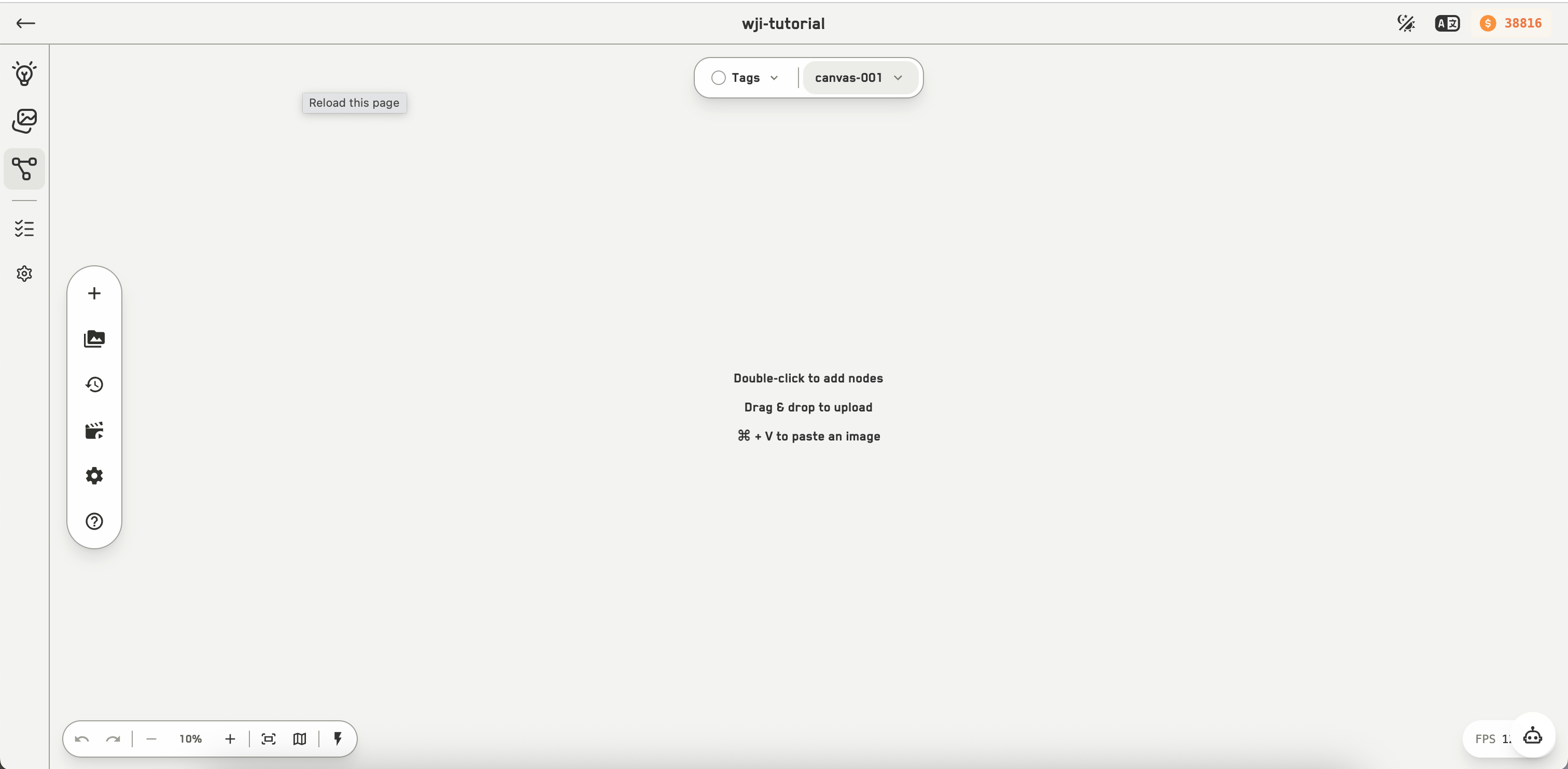
The canvas chrome: capsule toolbar, top bar, and viewport control bar
Opening the canvas collapses the workspace’s left panel to a narrow rail, and it stays collapsed while you are here.
The Alt key changes what a drag means
Alt — Option on a Mac — is the modifier to learn early. Without it, dragging moves things. Hold it and the same gesture files, duplicates, or fans out instead. It behaves differently depending on what you grabbed, so it is worth seeing every case in one place.Alt with a drag
Drop somewhere Alt means nothing and WJI tells you where the valid targets are, rather than failing silently.
Alt with a key
The multi-select toolbar shows an
⌥ badge whenever holding Alt would change what the next drag does, so you do not have to remember which gestures are overloaded.
Where to go next
Navigating the canvas
Zoom, pan, fit, and the minimap.
Creating nodes
Six ways to put something on the board.
Node types
All fourteen, and what each is for.
Connections and references
The core concept. Start here.